API performance testing involves simulating real-world traffic and observing your API’s resulting behavior. It is conducted to evaluate how well an API meets performance expectations for response time, throughput, and availability under the simulated load.
API performance testing can help you:
Ensure your API can handle the expected load and check how the API responds to changes in load (load is the number of parallel users hitting your APIs at the same time).
Optimize and improve the API’s performance to ensure a better user experience.
Identify any bottlenecks, latency, and failures and determine the scalability of the system.
Postman now has built-in capabilities for testing your API’s performance with your existing Postman Collections and requests. There are two core functionalities we will discuss in this post:
Using Postman to simulate load by having multiple parallel virtual users hit your endpoints.
Visualizing the performance of your APIs under the simulated load in real time. We will show you how to observe response times, throughput (requests hit per second), and error rates so you can keep tabs on your API performance metrics.
How to use Postman for API performance testing
You can use Postman’s Collection Runner to set up a performance test in Postman by following these steps:
Step 1: Select a collection, select an environment (optional), and click Run:
If you do not have a collection, read more about how you can quickly create one in Postman.
Please note that Postman will also execute all of your pre-request and test scripts along with the requests.
Step 2: Select the Performance tab under Runner, specify the load settings, and click Run:
Step 3: Observe the response times and error rate in real time:
You can toggle on the legend to view requests per second as well.
Step 4: Once the run is completed, observe and identify bottlenecks in response times and requests per second:
How to configure the load to simulate real-world traffic
You can now use the Collection Runner to simulate real-world traffic. You will be able to specify the following inputs to simulate the load condition:
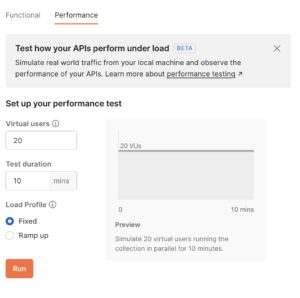
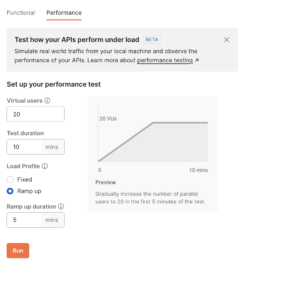
Virtual users (VUs): The maximum number of parallel users you want to simulate.
Test duration: The amount of time (in minutes) for which you want to run the test.
Load profile: The intensity of the load during the test’s duration. We currently support two load profiles:
“Fixed” load profile: This will apply a fixed number of virtual users throughout the test duration:
“Ramp up” load profile: This will slowly increase the number of virtual users during the “ramp up duration” to reach the specified load. Once reached, this number of virtual users will be maintained for the remaining duration:
Reference
- https://blog.postman.com/postman-api-performance-testing/


Good to know that, thanks!
ReplyDelete